
As with any firmware update, you are proceeding at your OWN RISK!
Visit http://www.dvmega.auria.nl/Downloads.html
At the time this document was created, the latest firmware was 3.14.
Download the Firmware and X-Loader (you won’t need the manual):

Unzip the Firmware and X-Loader software.
Power off the DVMega and place the switch into the IN position.
Connect the DVMEGA to the windows PC with supplied USB cable.
Run Windows Device Manager on your PC to determine which com port the DVMega is using.
Star the X-Loader and configure it look like this:
(your hex file location and com port will vary)
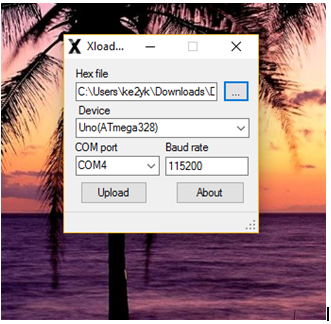
Hit upload and the bottom status window will display: uploading.
When complete the status will display: the number of bytes uploaded.
Unplug the DVMega and place switch into the OUT position (for Android console).
Select the INFO button on the BlueDV console display the firmware version.
Discover more from KE2YK
Subscribe to get the latest posts sent to your email.


Mine seems to never finish. A YouTube video I watched said it took about 10 seconds. I’ve let mine run for a half hour and still says “Uploading”. Am I doing something wrong? Only the one yellow light flashes rapidly and continuously.
LikeLike
I got to the Uploading screen and now my unit just says uploading … never completes the task. And, it does not work now. If i unplug it and reboot, the BlueDV Program shuts down.
LikeLike
mine does same any comments please
LikeLike