
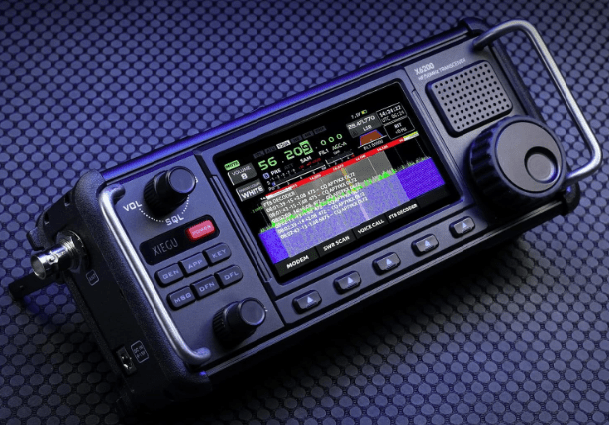
A Quick Guide to Upgrading Your XIEGU X6200
Intro:
Welcome back to the channel! In this video, we’re diving into the latest firmware update for the XIEGU X6200 radio, version 1.0.1. If you’re a radio enthusiast or a current owner of the XIEGU X6200, this update brings some exciting new features and improvements you’ll want to know about. From audio equalizers to smoother spectrum displays, this firmware update promises enhancements that will significantly impact your radio experience. I’m sharing this because understanding and applying these updates can help you get the most out of your equipment and enhance your overall performance.
Creator Bio:
Meet Tech Minds, a tech enthusiast dedicated to exploring and explaining the latest in technology and electronics. With in-depth reviews and practical tips, Tech Minds offers valuable insights into the latest gadgets and updates. For more tech reviews and updates, don’t forget to subscribe to the channel!
Key Takeaways:
- New Features and Improvements: The firmware update introduces several new features including an audio equalizer for both transmit and receive audio, adjustments for bandwidth spectrum, and an enhanced spectrum display.
- Update Procedure: The update process involves using a Micro SD card and the software tool Rufus to write the firmware image. Follow the steps carefully to ensure a smooth update.
- Visual and Functional Enhancements: Notable improvements include a smoother spectrum scope, better received S-meter accuracy, and new options for adjusting the display to conserve battery life.
Step-by-Step Update Process:
- Download the Firmware: Obtain the firmware version 1.0.1 from the Radioddity website.
- Prepare the Micro SD Card: Use a tool like Rufus to write the firmware image to a 32GB Micro SD card.
- Update the Radio:
- Power off the XIEGU X6200 and insert the SD card.
- Power the radio on and wait for the progress bar on the screen.
- Once the update completes, remove the SD card and power the radio off and on again.
- Go to the system page and select firmware update to complete the process.
- Check the system info page to ensure the firmware version is 1.0.1.
Resources Mentioned:
- Rufus: A utility for creating bootable USB drives or SD cards, used here to write the firmware image to the SD card.
- Firmware Update File: Downloadable from the Radioddity website, this file includes the new features and bug fixes for the XIEGU X6200.
Personal Best Advice:
As a tech enthusiast, I recommend backing up any important settings before performing a firmware update. Ensure you follow the update instructions precisely to avoid any issues. It’s also wise to review the release notes thoroughly to understand all the new features and changes.
FAQ:
- How do I download the firmware?
- Visit the Radioditty website and download the latest firmware version 1.0.1.
- What is the role of Rufus in the update process?
- Rufus writes the firmware image to the Micro SD card, which is necessary for the update.
- What should I do if the radio does not turn on after the update?
- Double-check the update procedure, ensuring all steps were followed correctly, and try restarting the radio.
- How can I confirm the update was successful?
- Check the firmware version on the system info page. It should read 1.0.1.
- Are there any new features in this firmware update?
- Yes, the update includes an audio equalizer, smoother spectrum display, and various bug fixes.
 Ham Radio Reviews and Events